
whatsapp-first-message-setup-en
Complete guide to finish your WhatsApp Business configuration and respond to your first message in Omniatix
WhatsApp First Message Setup Guide
Welcome to Omniatix! You've successfully connected your WhatsApp Business account. Now let's complete the setup by responding to your first message.
Language: This guide is available in Español
Why This Step is Important
WhatsApp requires you to respond to a test message from the WhatsApp Business Platform to fully activate your account. This ensures your integration is working correctly and you can start receiving messages from your customers.
Step-by-Step Instructions
Step 1: Access the Omniatix Chat App
After scanning the QR code in the WhatsApp Business configuration page, you need to access the Omniatix Chat platform to respond to the test message.
- Go to the Omniatix Console: https://omniatix.chat/home/
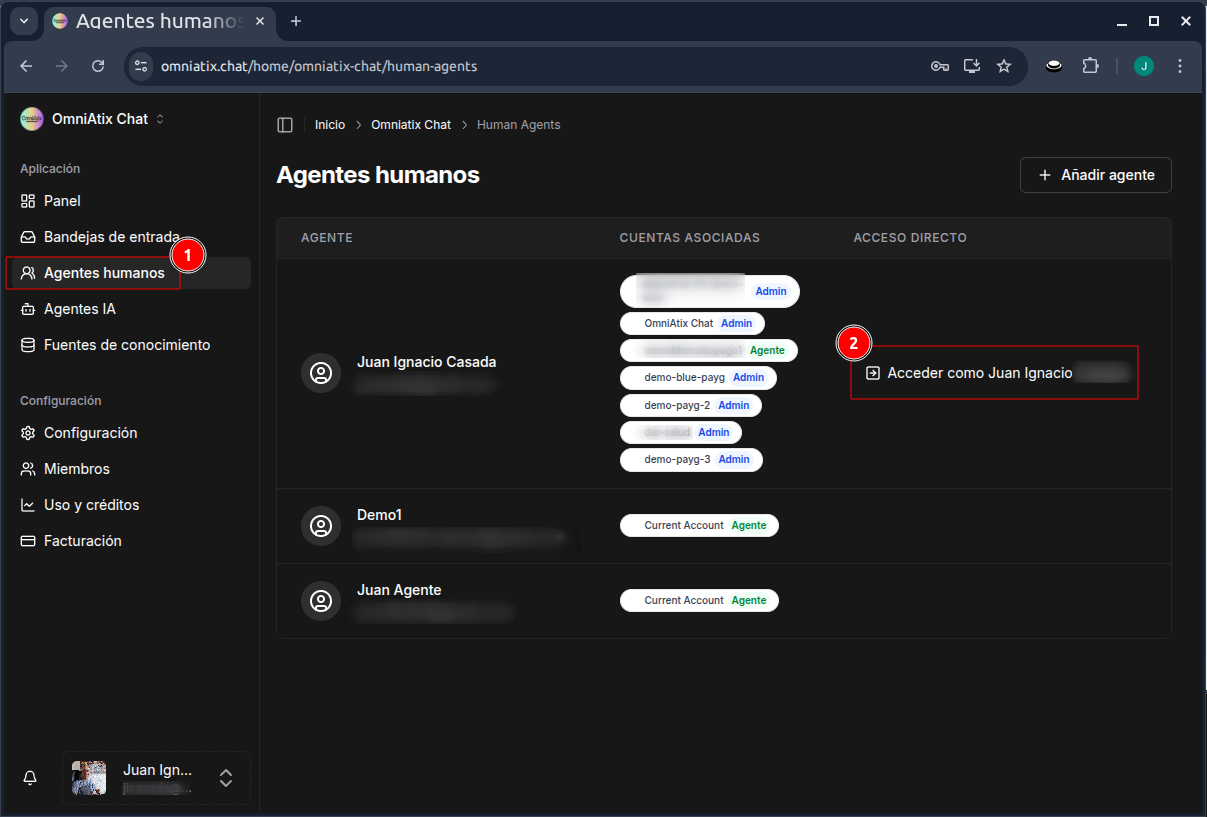
- In the left sidebar, click on "Agentes humanos" (Human Agents)
- Find your agent in the list
- Click on "Acceder como [Your Name]" (Access as)
This will redirect you to the Omniatix Chat App at https://app.omniatix.chat, where you can manage conversations.
Step 2: Respond to the Test Message
Once you're in the Omniatix Chat App:
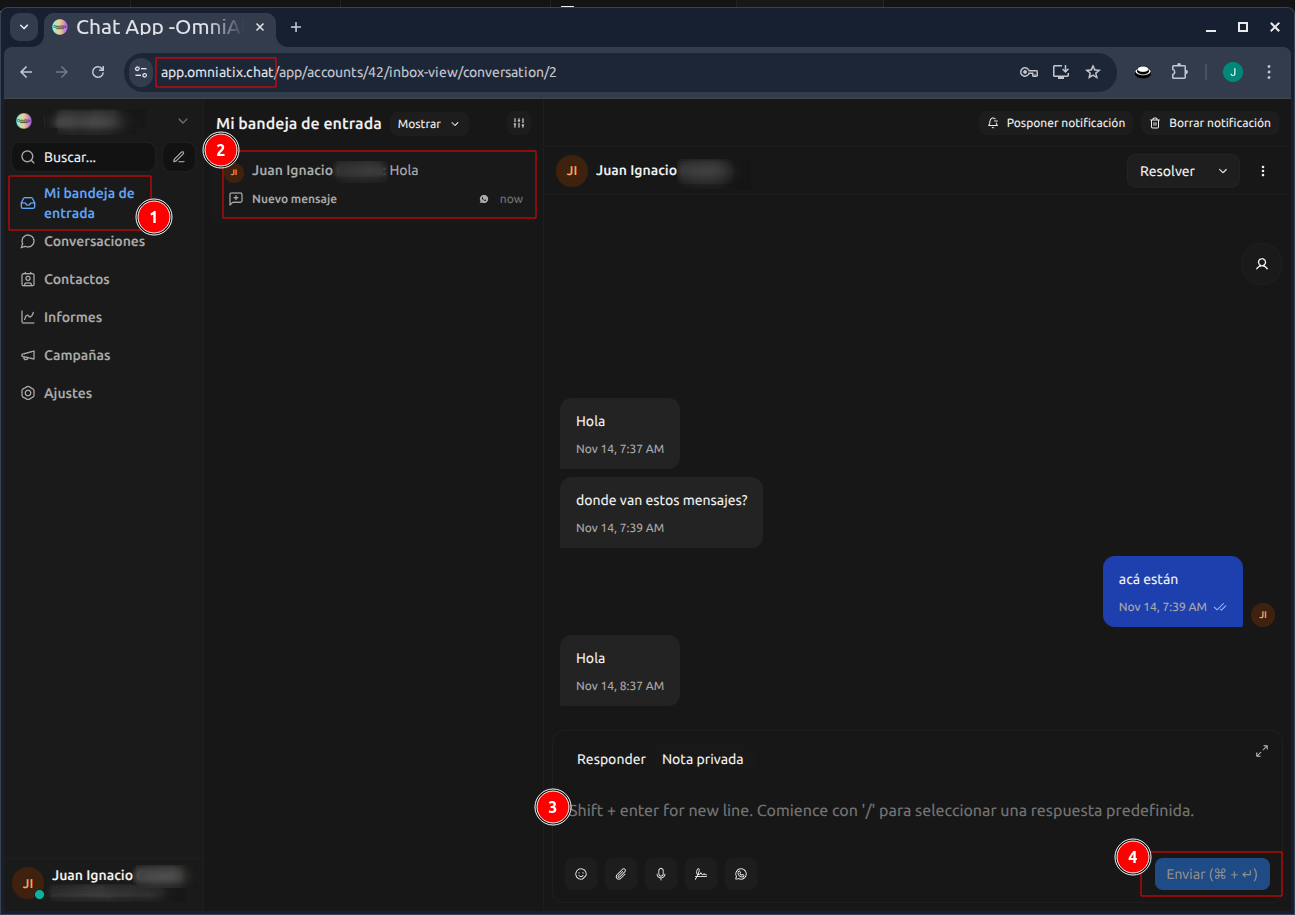
- Click on "Mi bandeja de entrada" (My Inbox) in the left sidebar
- You'll see the test message from WhatsApp Business Platform (phone number: 15558595833)
- Click on the conversation to open it
- Type your response in the message field at the bottom
- Click "Enviar" or press Enter to send
Important: You must respond from the Omniatix platform, not directly from WhatsApp.
Once you send the response, your WhatsApp Business integration is fully active!
Video Tutorial
[VIDEO PLACEHOLDER - Tutorial will be added soon]
Next Steps
Once you've successfully responded to the first message:
- ✅ Your WhatsApp Business integration is fully active
- ✅ You can start receiving messages from your customers
- ✅ Configure automated responses and chatbot flows
- ✅ Set up your team to handle conversations
Need Help?
If you're still having trouble completing the setup:
- Contact our support team
- Check our documentation for more guides
- Visit our knowledge base for common questions
Estimated time to complete: 5 minutes